LightBurn’s Art Library (.lbart files) is a specialized collection of pre-designed vector graphics specifically crafted for laser engraving and cutting. This curated library simplifies your workflow by eliminating the need for time-consuming vectorization, letting you focus directly on precise fabrication.
In this article, we’ll explore different ways to make the most of the Art Library in your laser projects.
¶ Locate the Art Library
1. The Art Library window is hidden by default in LightBurn's workspace. To open it, go to the Window menu in the top menu bar and select Art Library.
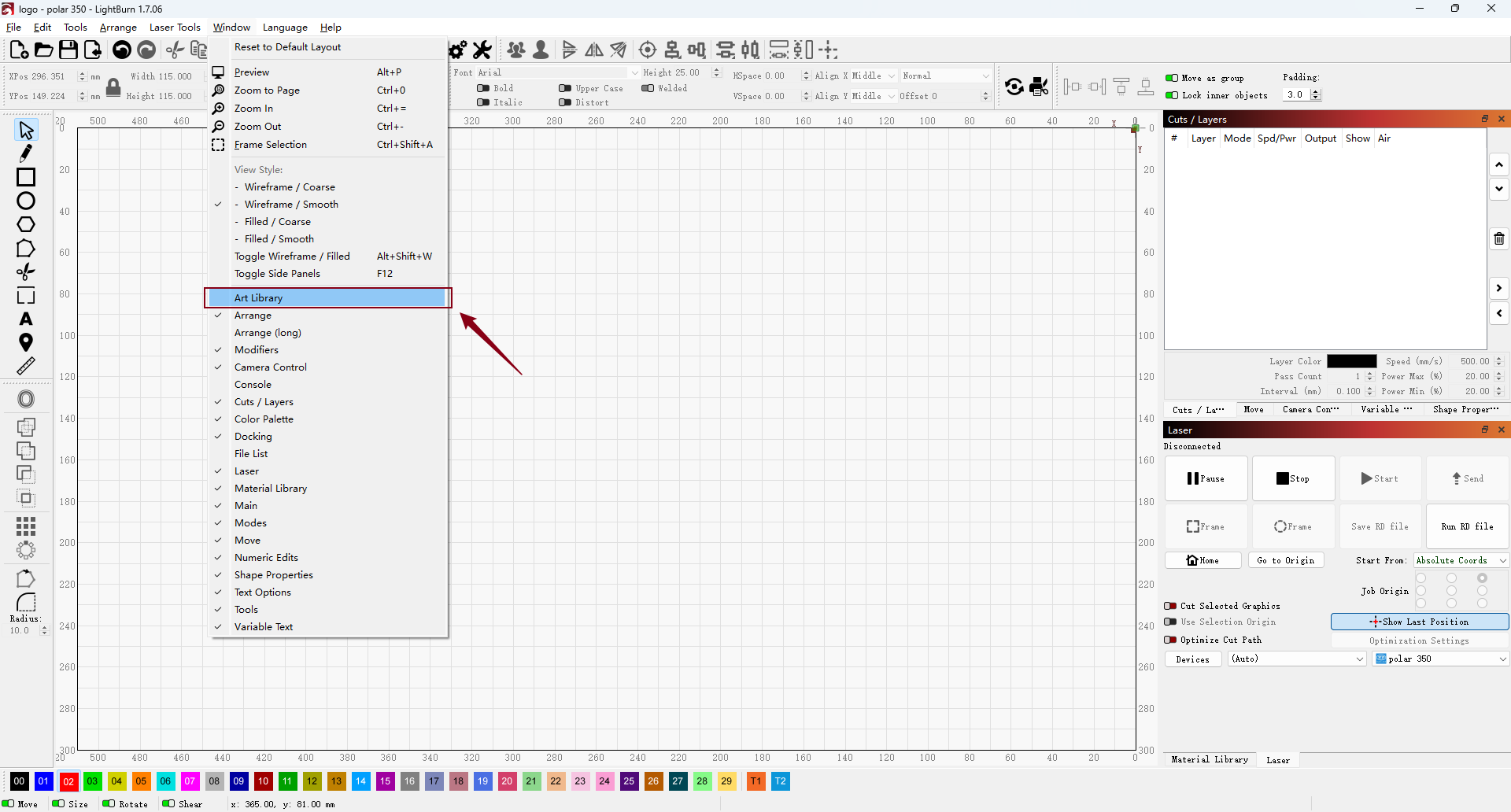
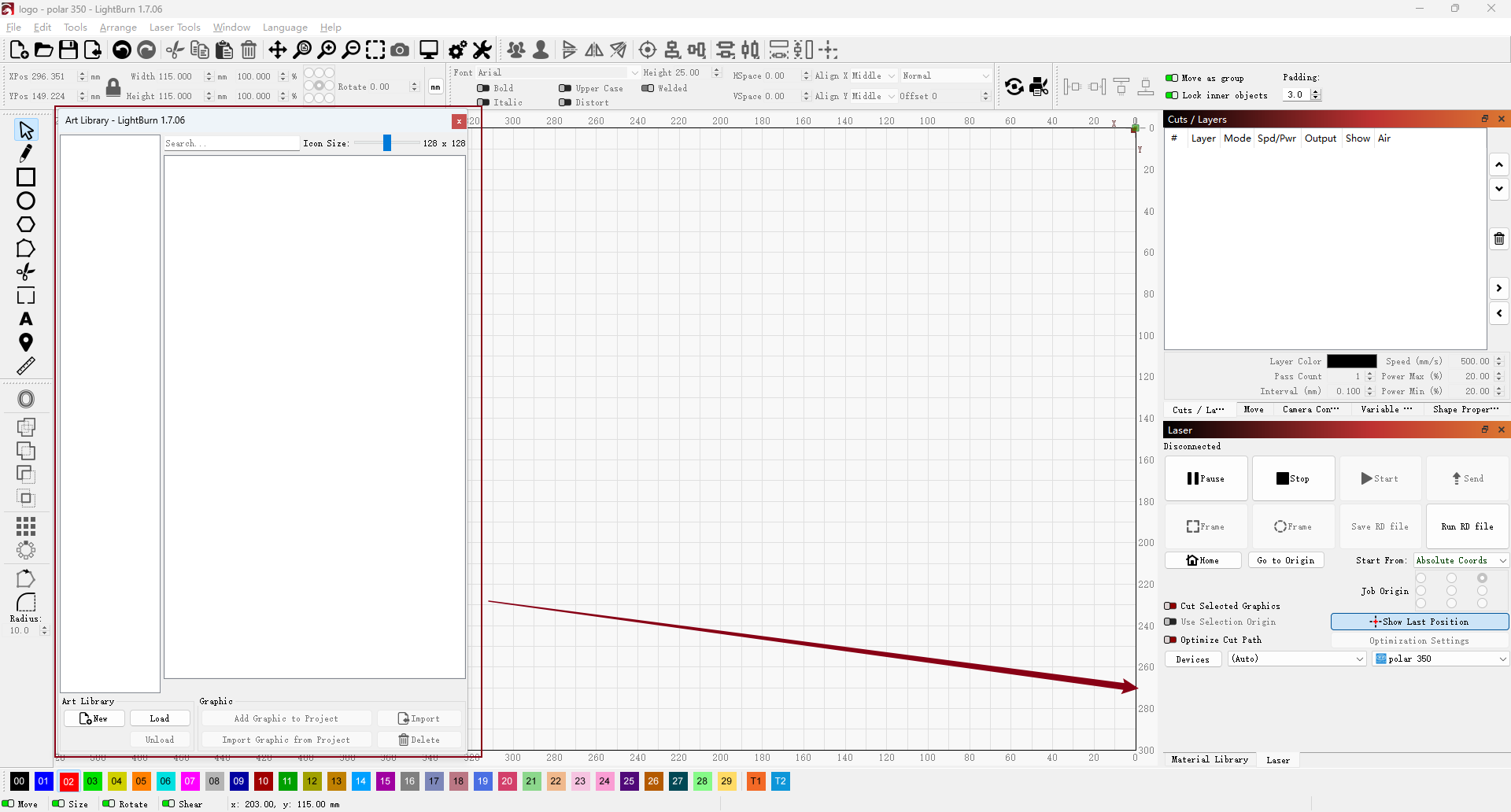
2. By default, the Art Library window appears on the left side of the workspace. You can drag it by the title bar to reposition it anywhere you prefer. Its placement may vary depending on your screen size and layout settings.
¶ Create an Art Library
- If you don't have an Art Library already, click New to create one.
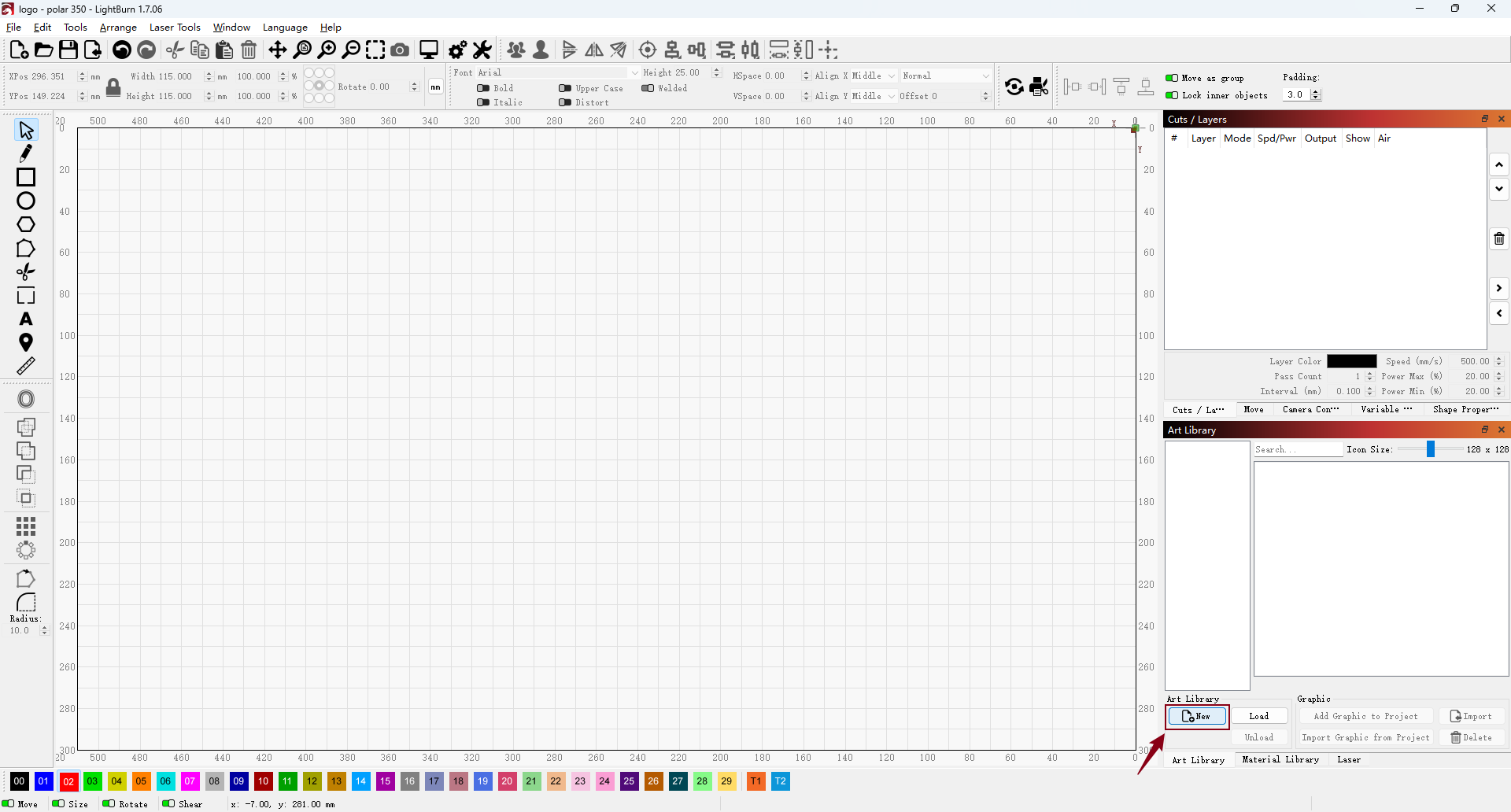
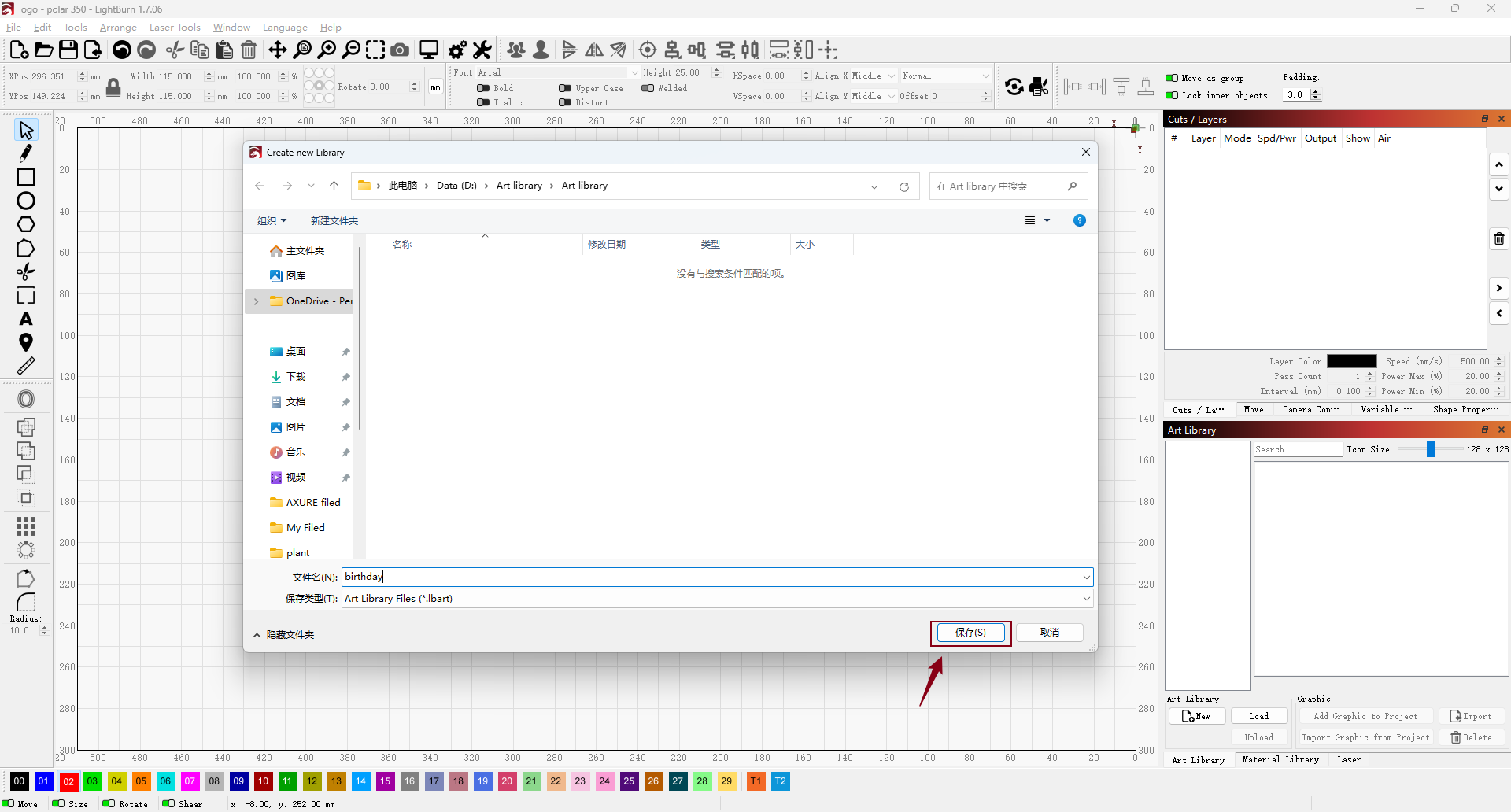
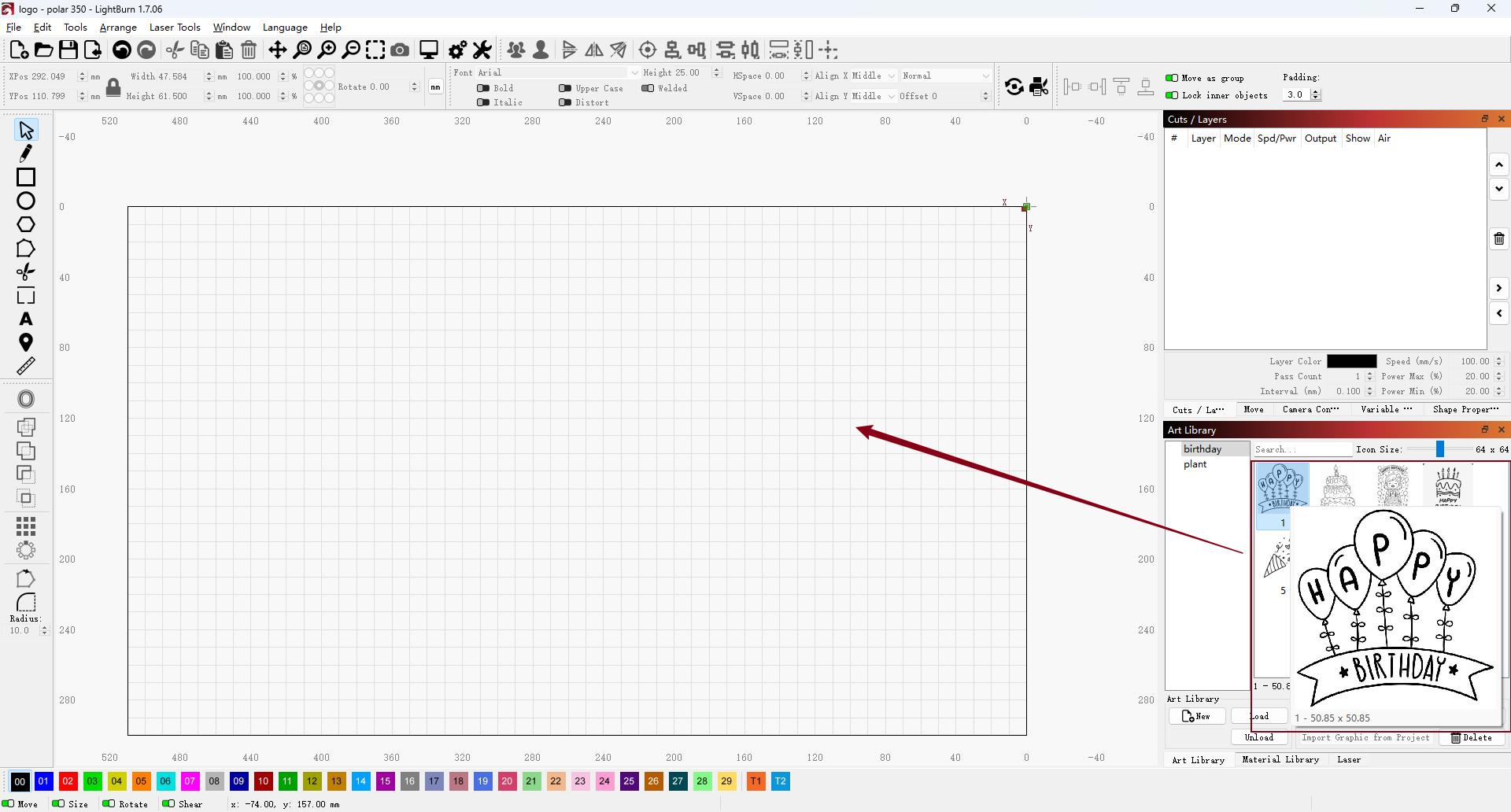
2. Then a File Explorer window will pop up to prompt you to name your library and select a location to save the .lbart file. This file stores all the artwork you add to the library—for example, the birthday-themed designs shown in the image below. Once you click Save, your library will appear in the left panel of the workspace.
3. To add artwork to a library, you have two options.
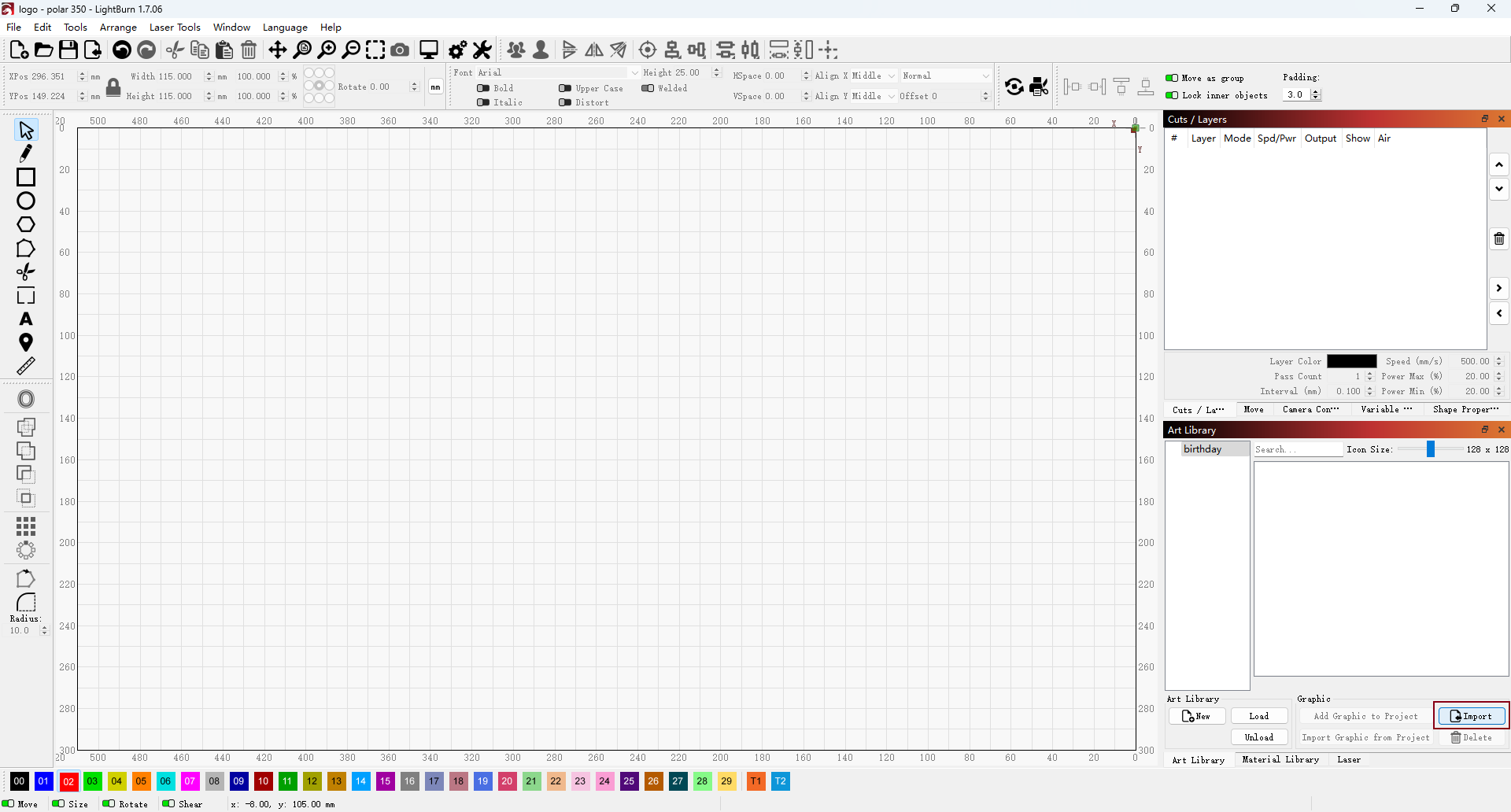
Option 1: Import from Your Computer
Select the library you want to add artwork to, and click Import to upload files from your computer.
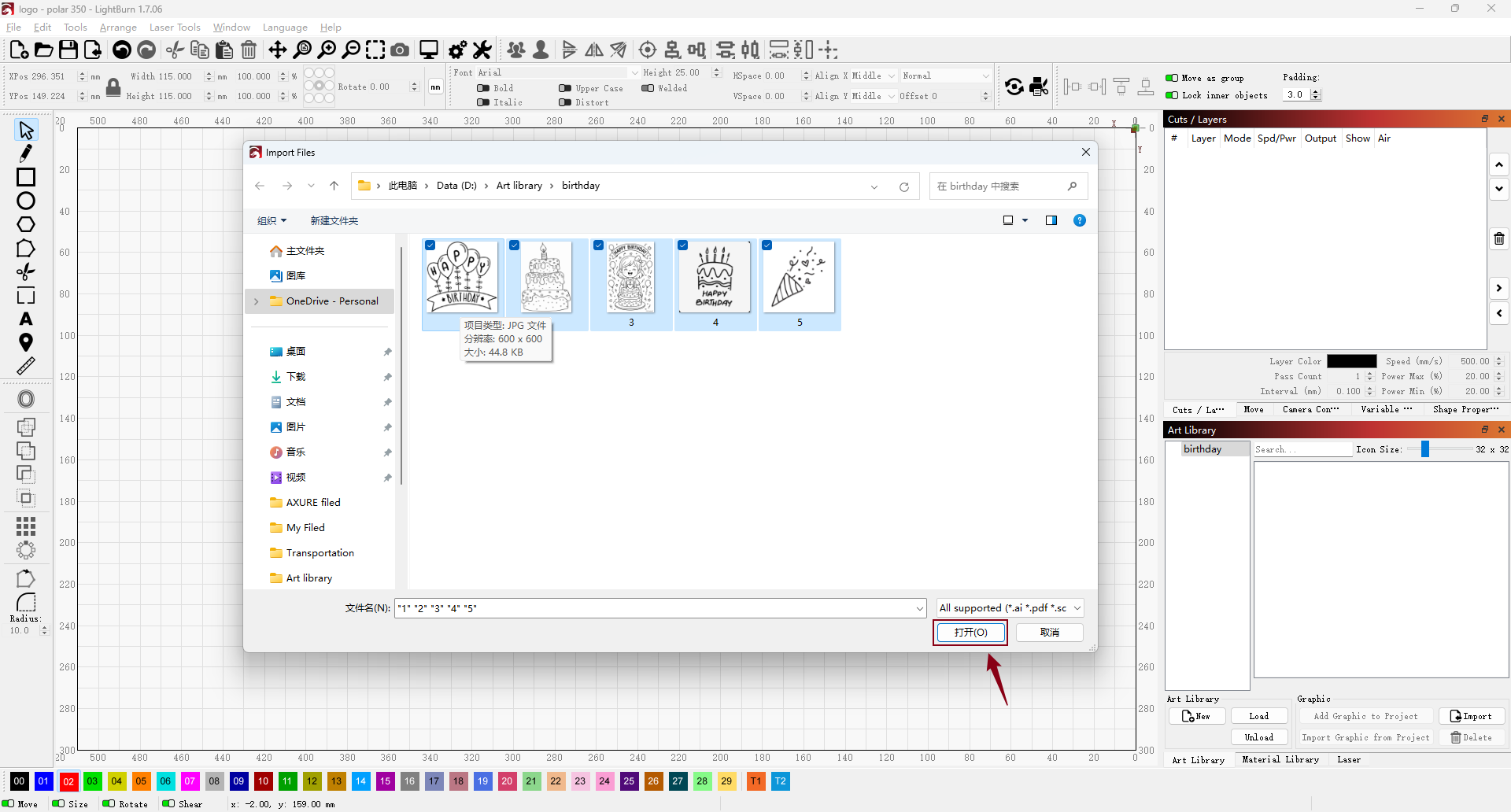
4. In the File Explorer window, locate and select the artwork file(s) you want to add, and click Open. This option allows you to quickly add existing graphics from your computer into your library.
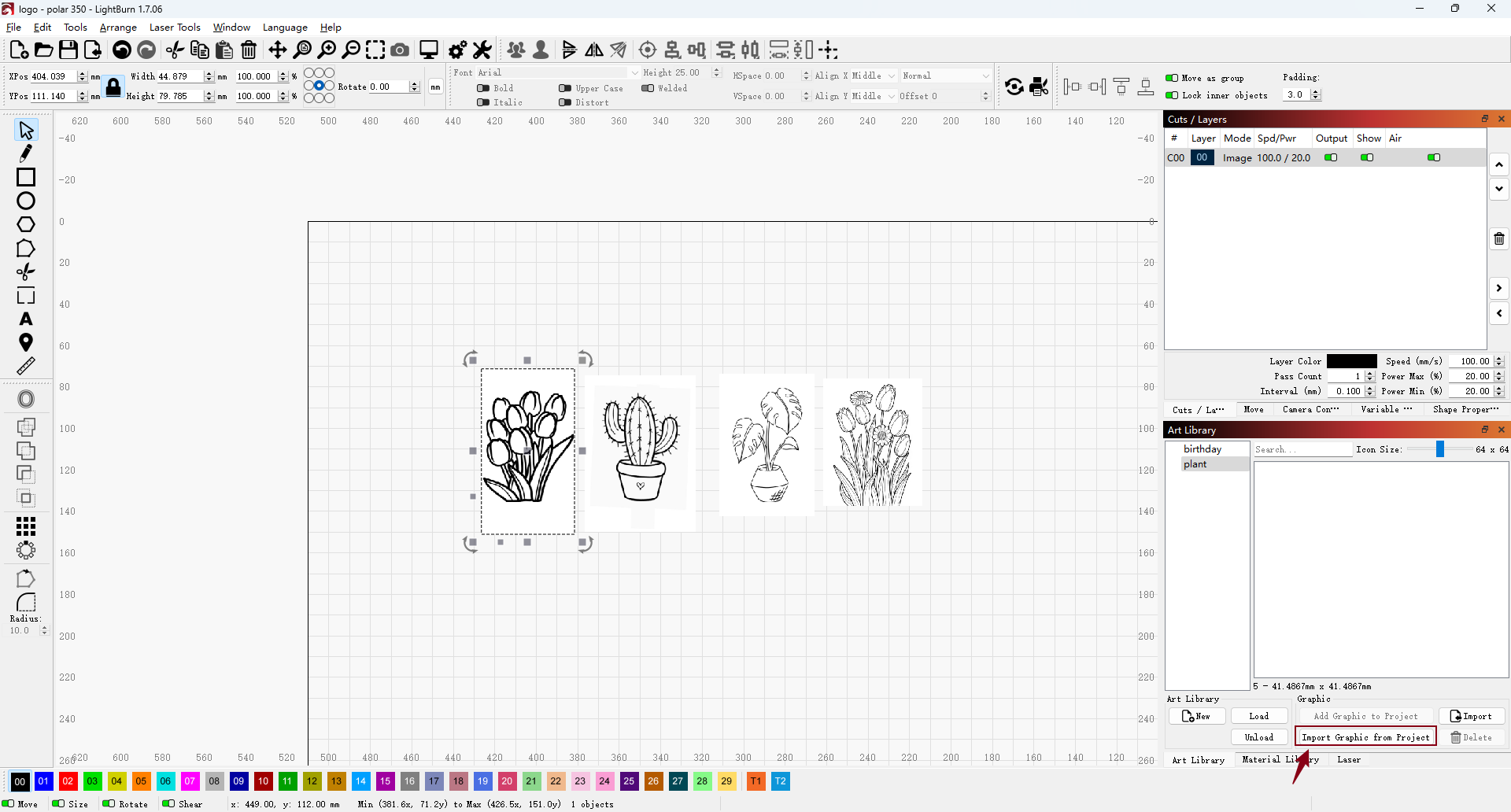
5. Option 2: Import from Your Current Project
Select the graphic you want to add, and click Import Graphic from Project to save it directly to your library.
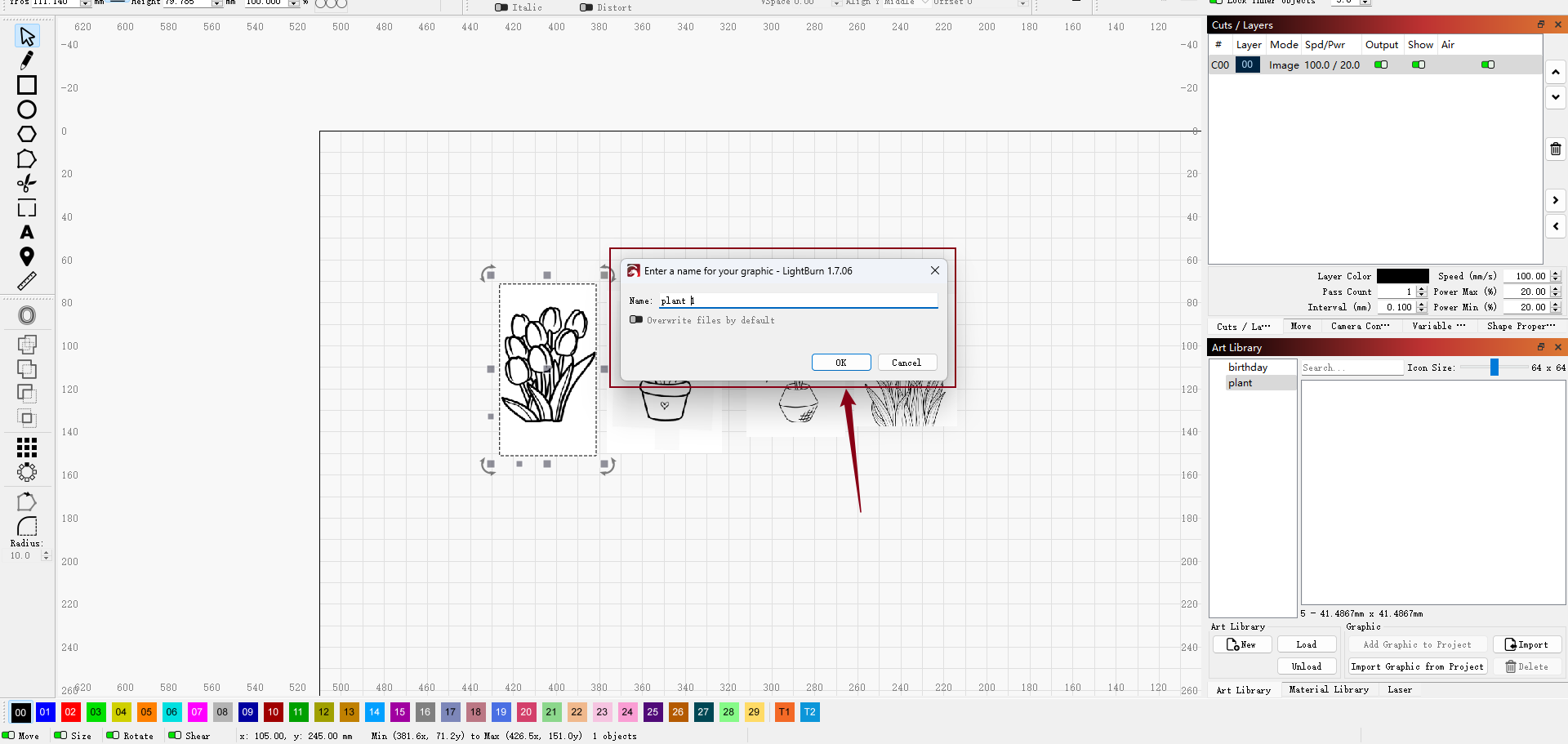
6. In the pop-up window, enter a name for your graphic in the text box, then click OK to save it to the library.
¶ Apply a Design from the Art Library
- To add artwork from your Art Library to your current project, either drag a thumbnail directly into the workspace or select the thumbnail and click Select.
For even greater efficiency, pair your artwork with Material Library presets (e.g., "3mm Wood - Engrave") for one-click application of power/speed settings.
¶ Hide/Reload the Art Library View
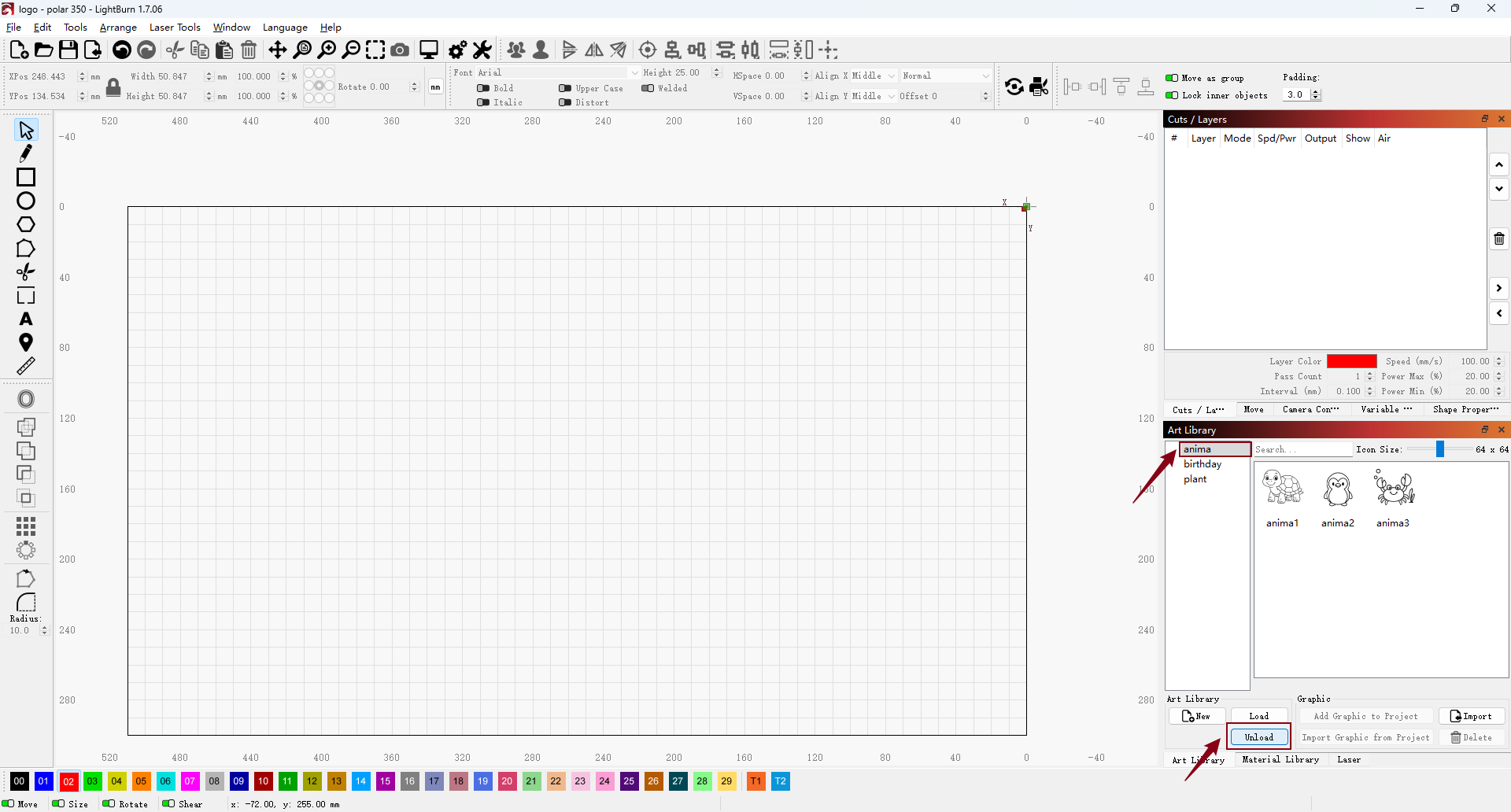
- If you have many libraries and don't need one for the current project, you can temporarily remove it from view. Select the library you want to hide and click Unload. This action hides the library but does not delete or alter its contents.
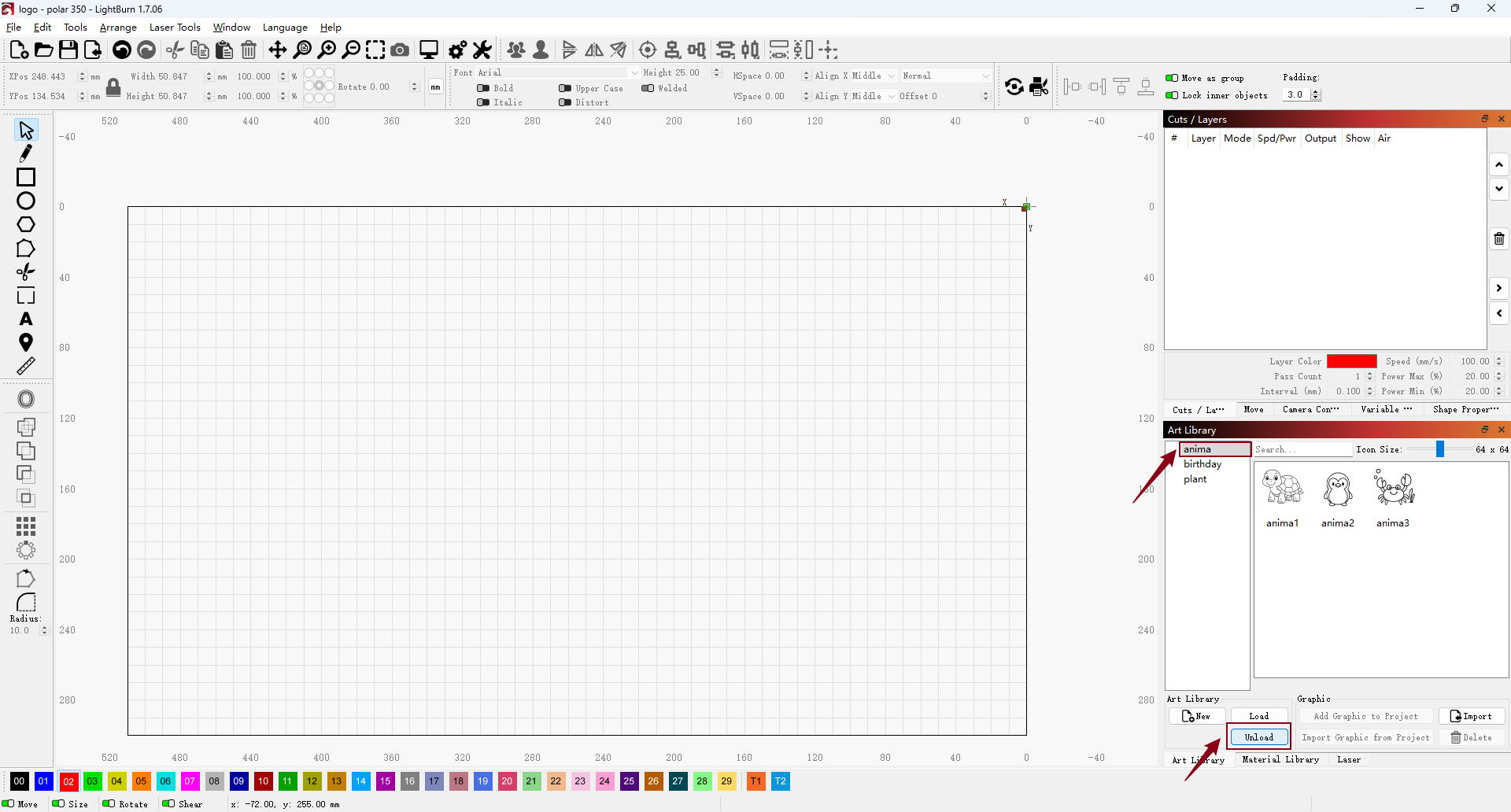
2. To reload a hidden library, click Load, select the .lbart file, and click Open.
To transfer a library to another computer, simply copy its .lbart file, as all artwork in a library is saved in a single .lbart file.
¶ Sourcing Quality Art Library Files
LightBurn users access .lbart assets from several sources:
- Official & Community Marketplaces: Platforms like Etsy offer premium art packs, such as the popular “8K Clipart Library”.
- Free Resources: User-generated .lbart files are shared on forums like the LightBurn Community, Reddit, and sites like Thingiverse—typically for non-commercial use.
- Creation Tools: You can convert existing SVG or DXF files into .lbart format using LightBurn’s Export as Art Library feature, which preserves optimization metadata for smooth use.